Installing OpenShift AI on OpenShift
![From GitOps repo to OpenShift AI deployment with verified GPU access in minutes - AI generated]](/images/posts/post_21/overview_hu_481bf5724faf0ef7.webp "From GitOps repo to OpenShift AI deployment with verified GPU access in minutes - AI generated]")
From GitOps repo to OpenShift AI deployment with verified GPU access in minutes - AI generated]
Introduction
In this post, I want to describe how to install Red Hat OpenShift AI on an existing OpenShift cluster and configure it to run GPU-accelerated workloads. The approach uses the rhoai-gitops repository, created and maintained by my team mate Álvaro López Medina, which automates the installation of OpenShift AI, the required operators, and the NVIDIA GPU stack through a single script backed by a GitOps approach.
If you do not have an OpenShift cluster available yet and want to provision one on AWS, a previous post Deploying OpenShift on AWS with Automated Cluster Provisioning covers exactly that. The steps below pick up where that post leaves off, though they apply equally to any running OpenShift cluster.
Prerequisites
Before proceeding, ensure the following are in place:
- A running OpenShift cluster with sufficient compute capacity
- The OpenShift CLI (oc) installed and available on your workstation
- Cluster-admin access
- If GPU support is needed: sufficient AWS quota for GPU instance types
Selecting the correct GPU instance node type
Selecting the right GPU instance type for your workload is a decision that is worth getting right before you provision anything, the instance family determines not just raw performance but also memory capacity, which directly constrains which models you can load and at what precision. Undersizing leads to out-of-memory failures, oversizing means paying for capacity you do not use.
Consult the AWS recommended GPU instances for deep learning to identify instance families suited to your workload, then cross-reference with the EC2 instance type availability by region to confirm that your target region actually offers the instance type you need. GPU instance availability varies significantly across regions and is a common source of unexpected quota errors at deployment time.
The following AWS instance types are commonly used in OpenShift AI GPU deployments:
| Instance Name | GPU | GPU RAM | vCPUs | RAM |
|---|---|---|---|---|
| g5.4xlarge | 1x NVIDIA A10G | 24 GiB | 16 | 64 GiB |
| g5.12xlarge | 4x NVIDIA A10G | 96 GiB | 48 | 192 GiB |
| g5.24xlarge | 4x NVIDIA A10G | 96 GiB | 96 | 384 GiB |
| g5.48xlarge | 8x NVIDIA A10G | 192 GiB | 192 | 768 GiB |
| p4d.24xlarge | 8x NVIDIA A100 | 320 GiB | 96 | 1,152 GiB |
Installing OpenShift AI
- Clone the rhoai-gitops repository:
git clone https://github.com/alvarolop/rhoai-gitops
cd rhoai-gitops
- Open the installation script and review the GPU-related configuration:
vi auto-install.sh
The three parameters that matter most for GPU-enabled deployments:
CREATE_GPU_MACHINESETS(Line 9): When set totrue, the script automatically creates MachineSets for GPU nodes. Set tofalseif you do not need GPU support initially.GPU_NODE_COUNT(Line 10): Total number of GPU nodes to provision. The nodes are distributed across Availability Zones a, b, and c for resilience.AWS_GPU_INSTANCE(Line 18): Defaults tog5.4xlarge, which provides an NVIDIA A10G GPU per node. Adjust based on the workload requirements and available quota.
Throughout the following steps, any value written in <angle brackets> is a placeholder and must be replaced with your actual value before running the command.
- Log in to the OpenShift cluster:
oc login -u <user_name> <cluster_api_url>
- Run the installation script:
./auto-install.sh
The script installs the required operators — including the OpenShift AI Operator, the Node Feature Discovery Operator, and the NVIDIA GPU Operator — and provisions GPU MachineSets if configured to do so. Depending on node provisioning times, the complete process takes 15 to 30 minutes.
- Confirm that the GPU worker nodes have joined the cluster:
oc get machineset -n openshift-machine-api
oc get machine -n openshift-machine-api
oc get nodes
- Verify that the NVIDIA driver is loaded and that the GPU is accessible:
oc exec -it -n nvidia-gpu-operator \
  $(oc get pod -o wide -l openshift.driver-toolkit=true \
    -o jsonpath="{.items[0].metadata.name}" \
    -n nvidia-gpu-operator) \
  -- nvidia-smi
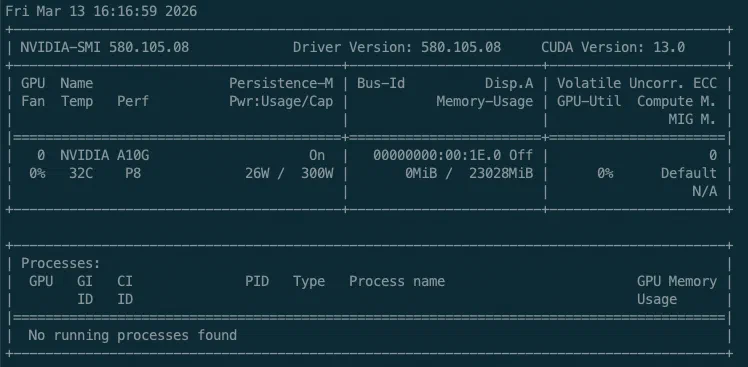
nvidia-smi output confirming GPU access from within the NVIDIA GPU Operator pod
- Check the Argo CD applications deployed as part of the GitOps installation:
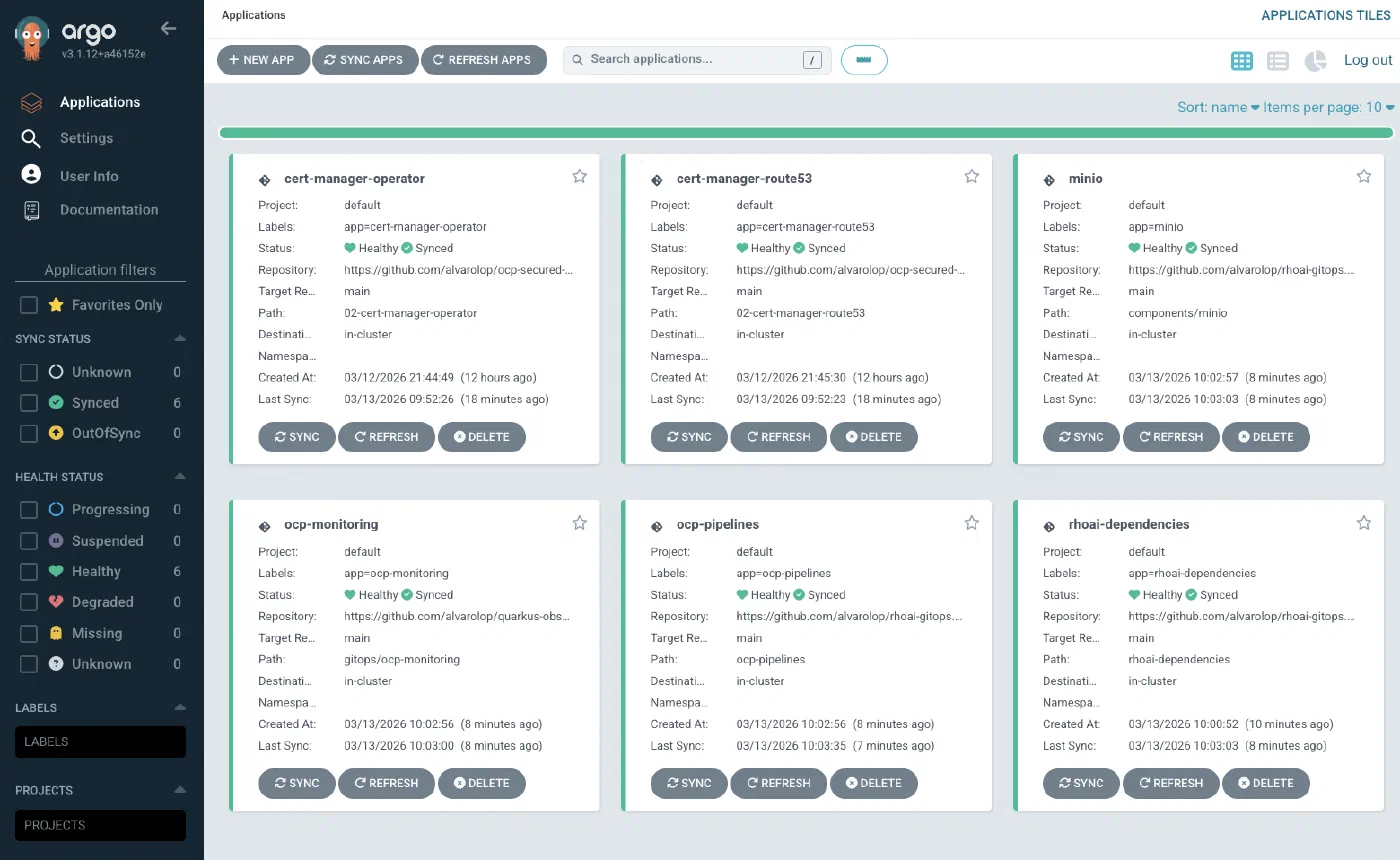
Argo CD application overview after the rhoai-gitops installation completes
All applications should be in a healthy and synced state before proceeding to configuration.
Configuring OpenShift AI for GPU Workloads
With OpenShift AI installed, a small amount of configuration is needed to allow workbenches to schedule onto the GPU nodes. GPU nodes in OpenShift are typically tainted with nvidia.com/gpu:NoSchedule to prevent standard workloads from landing on them accidentally. Workbenches that need GPU access must be configured with a matching toleration.
- Check the taints applied to the GPU nodes:
oc get nodes
oc describe node <gpu_node_name>
The relevant taint will appear as nvidia.com/gpu=:NoSchedule in the node description.
In the OpenShift AI console, navigate to Settings > Hardware Profiles and create a new profile (for example,
nvidia-gpu).Add a Toleration with the following values:
| Field | Value |
|---|---|
| Key | nvidia.com/gpu |
| Effect | NoSchedule |
| Operator | Exists |
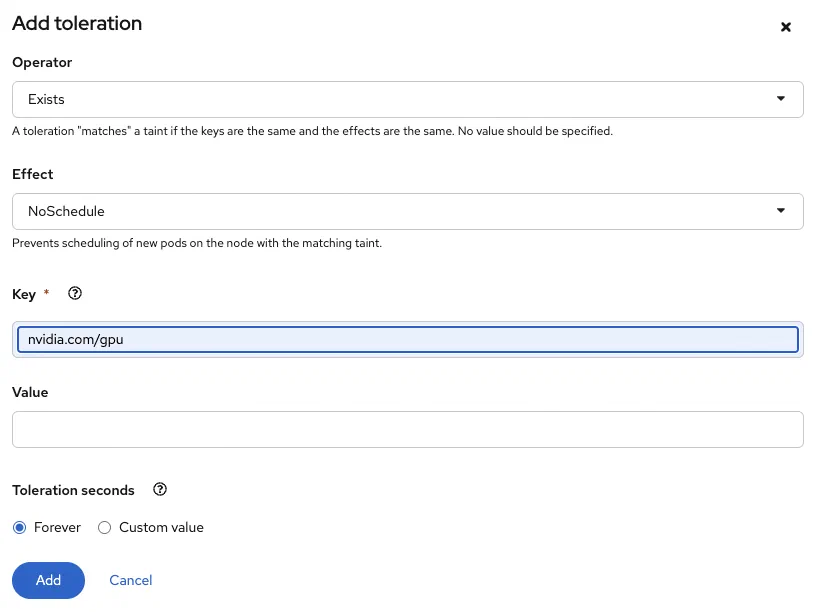
Configuring a toleration for the NVIDIA GPU taint in the Hardware Profile
This toleration allows workbenches assigned to this profile to be scheduled onto GPU nodes while keeping those nodes unavailable to other workloads.
Create a new workbench and select the
nvidia-gpuhardware profile. The workbench pod will be scheduled on a GPU node.Once the workbench is running, open a terminal and confirm GPU access:
nvidia-smi
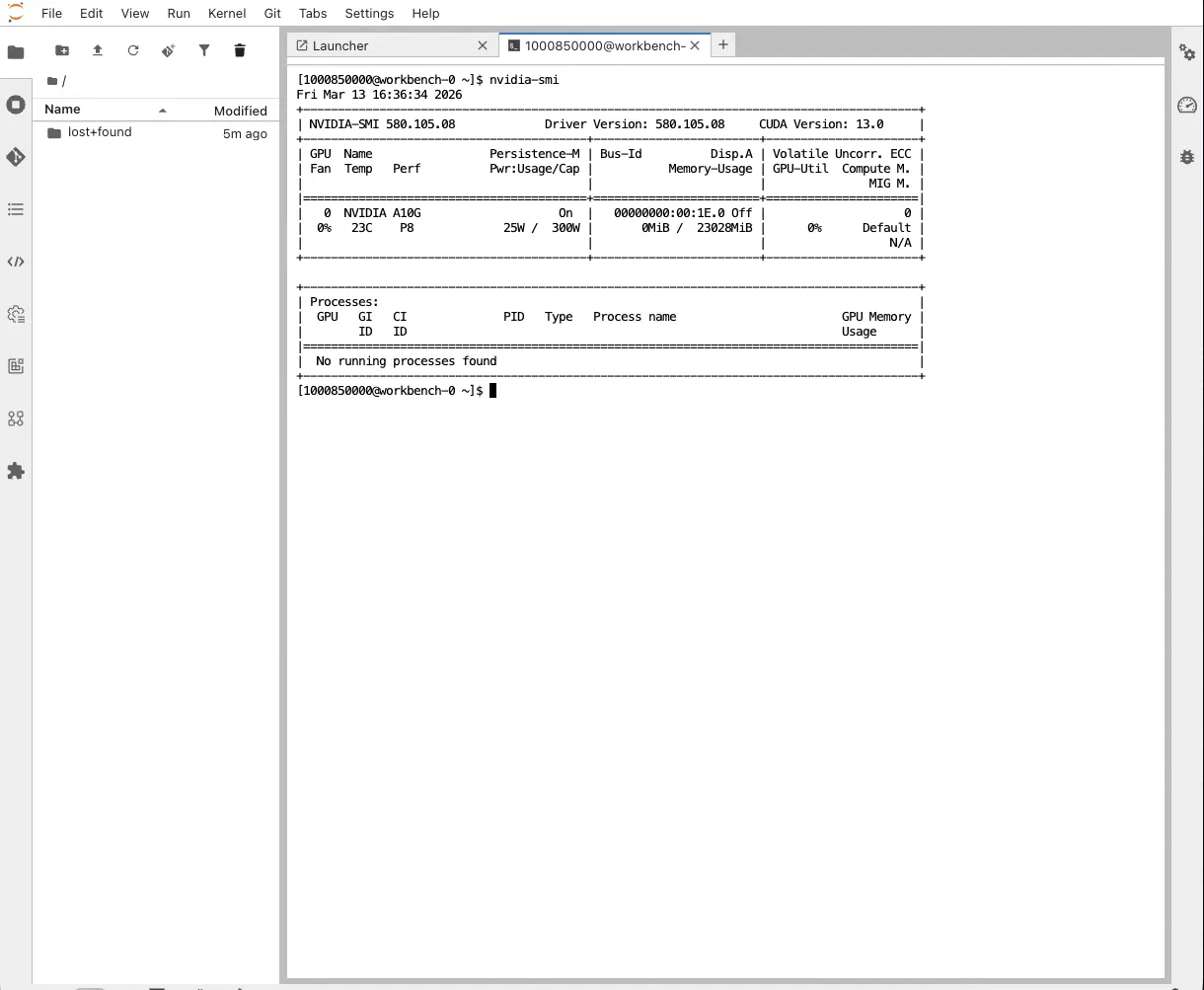
nvidia-smi output from inside an OpenShift AI workbench, confirming direct access to the NVIDIA A10G GPU
For a complete reference on hardware profiles and toleration configuration, the Red Hat OpenShift AI documentation covers the options in detail.
Conclusion
The rhoai-gitops repository makes the Red Hat OpenShift AI installation genuinely straightforward: one script handles the operator stack, the GPU node provisioning, and the GitOps wiring. The manual steps that remain — creating the hardware profile and configuring the workbench — are minimal and need to be done only once per cluster.
The end result is an OpenShift AI environment with full GPU access, ready for running Jupyter notebooks, training jobs, or serving models. If you provisioned the underlying cluster using the approach described in Deploying OpenShift on AWS with Automated Cluster Provisioning , the two repositories together cover the entire path from a blank AWS account to a working AI platform within a short timeframe of approximately two hours.
References
- rhoai-gitops - GitHub repository by Álvaro López Medina - link
- ocp-on-aws - GitHub repository by Álvaro López Medina - link
- Red Hat OpenShift AI - Managing Hardware Profiles - link
- OpenShift AI - Product documentation - link
- OpenShift CLI (oc) - Getting started - link
- NVIDIA GPU Operator documentation - link
- AWS EC2 instance type availability by region - link
- AWS recommended GPU instances for deep learning - link
- G5-Instances von Amazon EC2 - link
- Amazon-EC2-P4-Instances - link
Author: Dr. Stephan Michard
Words: 1079