Tank OS: Running OpenClaw locally in a safe and open way
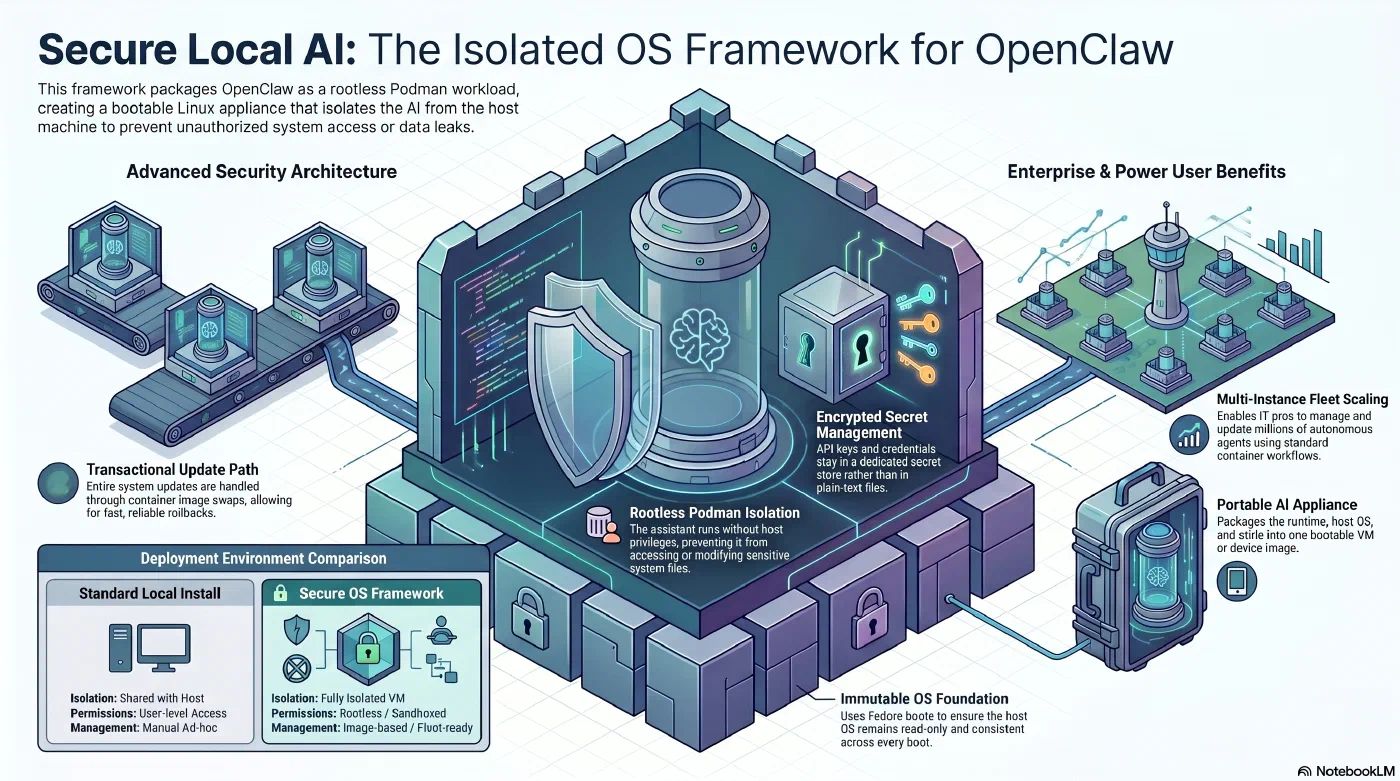
Tank OS packages OpenClaw as a rootless Podman workload inside a Fedora bootc VM - AI generated
Introduction
In this post, I want to describe how to run OpenClaw on a laptop using Tank OS , a Fedora bootc image that packages OpenClaw as a rootless workload inside an immutable operating system. This is a different path from the approach in the previous post on Deploying OpenClaw on OpenShift . Tank OS runs on a regular machine through a virtual machine. The result is the same agent, running locally without any cluster dependency.
What is Tank OS
Tank OS was created by Sally O’Malley , a principal software engineer at Red Hat and one of the OpenClaw maintainers. The project was published in April 2026, shortly after OpenClaw’s rise to the most-starred software repository in GitHub’s history. In the TechCrunch article that accompanied the release, O’Malley was direct about the risk: OpenClaw is “an incredibly powerful application” but one that can be “dangerous” without proper configuration. “It’s not a tool that you can use easily unless you do have some sort of technical experience,” she said. Tank OS is her response to that gap.
Tank OS packages OpenClaw inside a Fedora bootc image, which is a complete Linux operating system distributed as a container image. You do not install Tank OS on top of your existing OS. Instead, you build a QCOW2 disk image from the bootc image and boot it in a virtual machine. OpenClaw runs inside that VM as a rootless Podman container, isolated from the host.
Prerequisites
The following steps have been tested on a Apple Silicon MacBook. Before starting, the following must be in place:
- Homebrew - the package manager for macOS, used to install QEMU
- QEMU version 11 or later - the open source machine emulator used to run the Tank OS virtual machine:
brew install qemu - Podman version 5 or later — the container engine used by the smoke-test script to pull the Tank OS image and run
bootc-image-builderto produce the QCOW2 disk image - An SSH key pair at ~/.ssh/. The Tank OS image locks the default user’s password, so this key is the only way in.
If you do not have a key at that path, generate one:
ssh-keygen -t ed25519 -f ~/.ssh/github -C "tank-os"
Getting Started
The entry point to Tank OS is slightly unconventional, and worth explaining before running anything.
Rather than providing a traditional setup script, the Tank OS GitHub repository
includes an agent prompt at the bottom of its README. The idea is that you copy that prompt, paste it into a coding agent such as Claude Code, and the agent handles the bootstrap: it clones the repository, inspects the structure, and produces the smoke-test.sh script that drives the actual workflow. Instead of reading through setup instructions and editing configuration by hand, you hand the prompt to the agent and get a runnable script back.
This is an uncommon way to explore a new project. The approach makes sense here because the setup involves several environment-specific details, including QEMU firmware paths, the difference between rootful and rootless Podman, and SSH key locations. An agent can adapt these to your machine setup without requiring manual edits to a configuration file.
Building, Booting, and Running OpenClaw
Once the agent has produced the smoke-test.sh script, the rest of the workflow runs through that script in four phases.
Phase 1: Building the Disk Image
First, make sure the default Podman machine is running:
podman machine init
podman machine start
Then run the build phase:
./smoke-test.sh build
This phase does several things automatically. It reads your SSH public key from ~/.ssh/github.pub and writes a config.json file that embeds the key into the disk image at build time. Without this step, the VM boots with no login path because the openclaw user password is locked in the default image.
Next, the script establishes a rootful Podman connection, required by the bootc-image-builder to write to the container storage, pulls the Tank OS image into the rootful store, and runs the bootc-image-builder as a privileged container to produce the QCOW2 disk image.
The output is then resized to 20 GB. The default 10 GB is not enough once the 3.5 GB OpenClaw container image and the OS are both on disk.
The build takes a few minutes. When it finishes, the QCOW2 file is in the output directory out-tank-os, ready to boot.
Terminal output once the build step completes.
Phase 2: Starting the VM
./smoke-test.sh vm
This starts QEMU with Apple’s Hypervisor Framework for acceleration, four virtual CPUs, 4 GB of RAM, and port forwarding from localhost:2222 to port 22 inside the VM. The VM boots using the UEFI firmware that Homebrew installs alongside QEMU.
The terminal shows the VM console as the OS starts. The OpenClaw Podman service launches automatically as a systemd user unit.
Phase 3: Connecting to OpenClaw
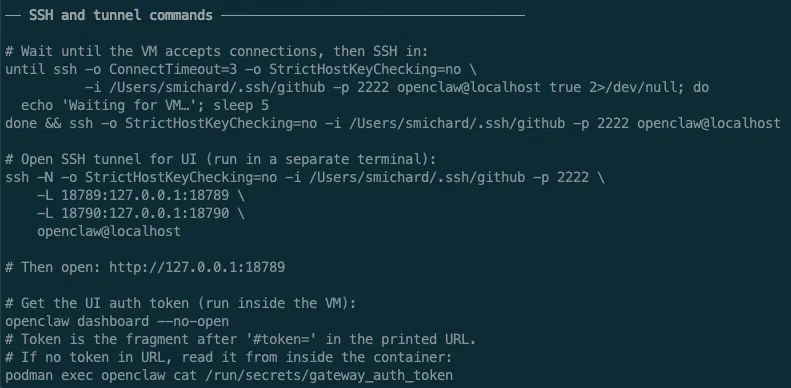
Open a second terminal and wait for the VM’s SSH daemon to accept connections, then log in:
until ssh -o ConnectTimeout=3 -o StrictHostKeyChecking=no \
          -i ~/.ssh/github -p 2222 openclaw@localhost true 2>/dev/null; do
  echo 'Waiting for VM...'; sleep 5
done && ssh -o StrictHostKeyChecking=no -i ~/.ssh/github -p 2222 openclaw@localhost
Once logged into the VM, verify the agent is running with:
podman ps

Terminal output shows OpenClaw running as Podman container inside the Fedora VM
Once inside the VM, retrieve the gateway authentication token:
jq -r '.gateway.auth.token' ~/.openclaw/openclaw.json
If the command returns nothing, generate a token first, then repeat:
openclaw doctor --generate-gateway-token
In a third terminal, open the SSH tunnel so the OpenClaw web interface is reachable from your browser:
ssh -N -o StrictHostKeyChecking=no -i ~/.ssh/github -p 2222 \
    -L 18789:127.0.0.1:18789 \
    -L 18790:127.0.0.1:18790 \
    openclaw@localhost
Open http://127.0.0.1:18789 in a browser. Paste the gateway token when prompted. The OpenClaw dashboard appears and the agent is ready.
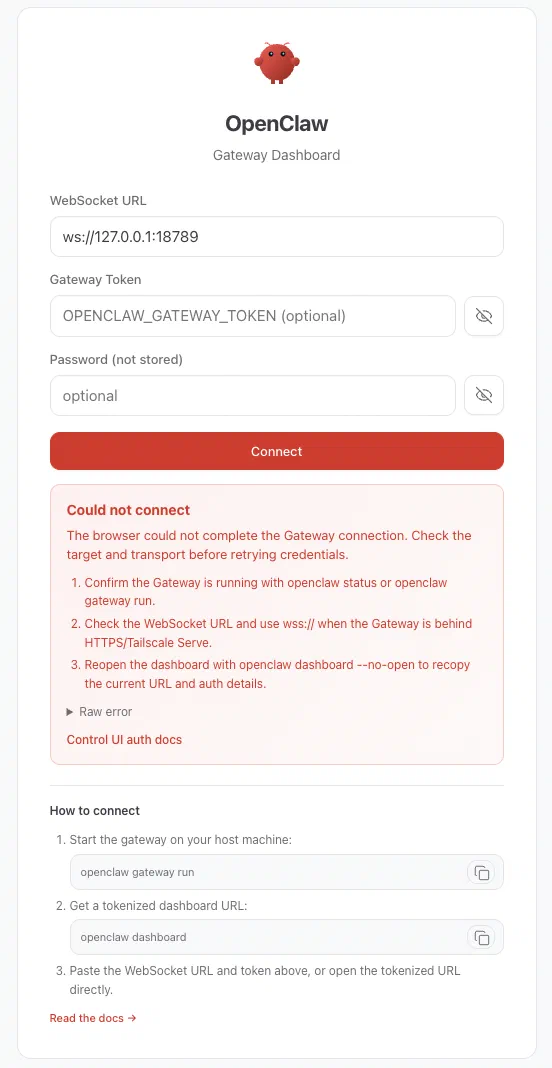
OpenClaw Gateway Dashboard running locally
Adding a Model Provider
Tank OS stores API keys as Podman secrets rather than in configuration files. From inside the VM, create a secret for your provider:
printf '%s' "$ANTHROPIC_API_KEY"  | podman secret create anthropic_api_key  -
printf '%s' "$OPENAI_API_KEY"     | podman secret create openai_api_key     -
printf '%s' "$GEMINI_API_KEY"     | podman secret create gemini_api_key     -
printf '%s' "$OPENROUTER_API_KEY" | podman secret create openrouter_api_key -
Then sync it to the OpenClaw configuration and restart the service:
tank-openclaw-secrets
systemctl --user restart openclaw.service
This updates the OpenClaw configuration and restarts the service.
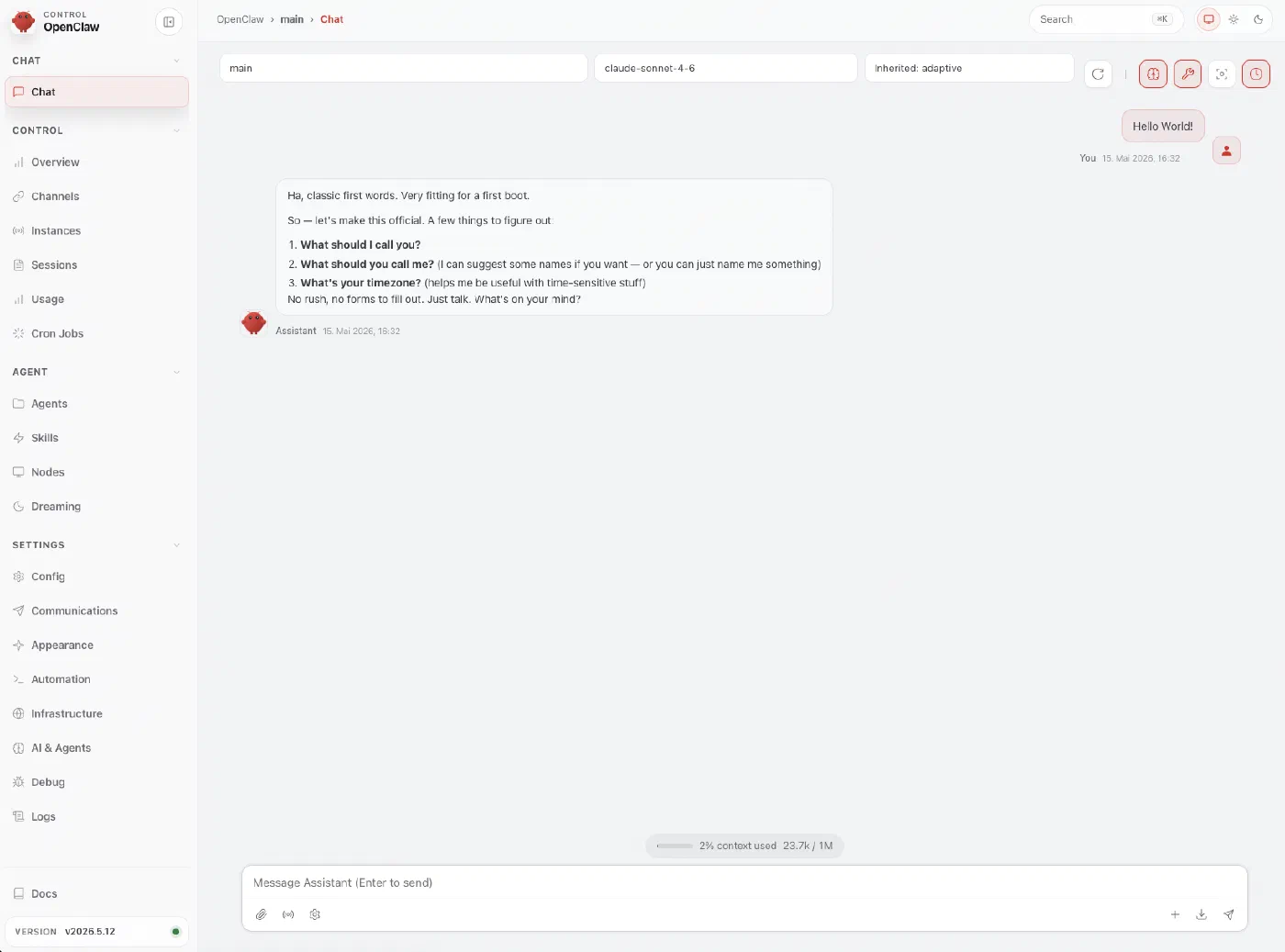
OpenClaw Dashboard running locally, configured to use Anthropic Claude Sonnet model
Conclusion
Tank OS is a practical way to get OpenClaw running on a laptop without modifying the host system. The agent runs inside a virtual machine on an immutable Fedora base, which limits what a misconfigured agent can reach on the host. Updating is also clean: pull a new bootc image and reboot, and the system reflects the new state.
For teams that already have OpenShift running, the claw-installer approach from the previous post is faster to deploy and integrates with cluster authentication out of the box. Tank OS is the right choice when you want a self-contained local setup that does not depend on a cluster, a cost-effective way to explore OpenClaw, or a portable environment to run a demo.
References
- Tank OS - GitHub repository - link
- Deploying OpenClaw on OpenShift - link
- Sally O’Malley - GitHub Profile - link
- Red Hat’s OpenClaw maintainer just made enterprise Claw deployments a lot safer - TechCrunch - link
- Running the Red Hat AI Inference Server on OpenShift - link
- Fedora bootc documentation - link
Author: Dr. Stephan Michard
Words: 1247